C# Shortcuts: C++ Technical Documentation Writer

Background

My C# Shortcuts app is a personal project of mine being developed in my own time outside of work in 2021. The goal of this app is to automate a bunch of different repetitive tasks in my everyday life to save time and increase efficiency. Programmers are definitely one of the laziest people you’ll meet, in the way that if we can get out of manually doing the work, we’ll dedicate 12 hours to automating a 1 hour job, with the aim of not having to manually repeat that 1 hour job in future. That is the goal of this app.

But why C# if my main work is all in C++? The reason is quite simple: because if I wrote it in C++, I wouldn’t be learning anything. C# was the first programming language I used back when I started my tertiary education at AIE, and I’ve touched on it again and again in the years since but I’ve never held onto a C# project long enough to become properly proficient in the language. By building this project in C#, I learn new things with every new feature, and I continue to add to my personal knowledge base, which is always the main goal of all my work.


Theme: Automation
Engine: MonoGame (XNA)
Platform: PC
Time Worked: 20 March 2021 - 11 April 2021

C++ Technical Documentation Writer

One aspect of being a programmer I donโ€™t like is writing technical documentation. Therefore, it only seems natural that I should automate the process as much as I possibly can.

The goal of this feature was to gather information on classes, structs, enums, variables, functions, etc from all of the .h files in a C++ (UE4) project and translate that data into a human readable format in a similar manner to Unreal Engine 4โ€™s online documentation. The projects that I worked on at work were becoming big enough that I keep forgetting exactly where to find some functions or features, not to mention, if something happens to me, someone is going to have to try and interpret all of my work to pick up where I left off. This will also come in handy as Iโ€™ve been playing with the idea of releasing some of my personal work to the UE4 Marketplace, and it will save time if I can automate the process.

Reading the text from the files was the easy part – the hard part was interpreting the data. Of course in C++ there are multiple ways of writing the same thing in a header, and so it was a challenge to refine the automation to determine what was garbage data and what was useful information. Even now itโ€™s still not perfect, but as I notice little things Iโ€™ll gradually fix them and itโ€™ll make it one step closer to perfection.

What the feature specifically does:

  1. Takes in a folder path and finds all .h files in this folder and all its children folders, and all their children folders recursively.
  2. Then one file at a time, it reads the text data into a string array.
  3. And then for each line:
    1. It assumes the lines are garbage until it finds one that contains “/*”, “UCLASS”, “class” (but not containing “include” or ‘;’), or UENUM, or “enum” (but does not include ‘;’), or “USTRUCT” or “struct” (but not containing “;”), or “namespace” or “UINTERFACE”
    2. Then it finds what we’re dealing with (class, struct, enum, namespace [interfaces are treated as classes]) and then it gets the module, header and include data from the file, and then if it’s a class, struct, or namespace, it checks if it has a description first, and if not moves on to UE4 descriptors, and if not, then name and parents; if it’s an enum, it builds a CppEnum Object with all of the above and then continues to the next line of the string array
    3. The following is all laid out as “else if”s in the code:
      1. If it’s not an enum, it then checks for “GENERATED” and “BODY”, so that it can ignore this line
      2. Else if the line contains “UCLASS” and we’re working on a CppClass Object, if gathers the Descriptors and Meta Descriptors for the class
      3. Else if the line contains “USTRUCT” and we’re working on a CppStruct Object, it gathers the Descriptors and Meta Descriptors for the struct
      4. Else if the line contains “class”, we’re working on a CppClass Object, and the current class name is unknown, it gathers the name and parents of the class
      5. Else if the line contains “struct”, we’re working on a CppStruct Object, and the current struct name is unknown, it gathers the name and parents of the struct
      6. Else if the line contains “namespace”, we’re working on a CppNamespace Object, and the current namespace name is unknown, it gathers the name and parents of the struct
      7. Else if the line contains “public”, “protected”, or “private”, it updates the current protection level to use for the following code
      8. Else if the line contains “};” then we’ve reached the end of the class or struct, etc
        1. Known Issue: This does not yet take into account an array declared in a header like TArray<int32> IntArray = { 1, 2, 3 };
      9. Else if the line contains “/” then we add the line to the currently held description for the next CppObject to come along
      10. Else if the line contains “/*” then we add the line to the currently held description for the next CppObject to come along, and if the line does not contain “*/”, then we keep doing so until we reach the end of the comment
      11. Else if the line contains “UFUNCTION” and is a class or struct, it starts a new function in the current CppClass/CppStruct/etc and gathers the Descriptors and Meta Descriptors
      12. Else if the line contains “UPROPERTY” and is a class or struct, it starts a new variable in the current CppClass/CppStruct/etc and gathers the Descriptors and Meta Descriptors
      13. Else if the line contains “(” and “)”, and if the line has a “(” before a “=” then we know it’s a function, and so we gather the rest of the function data: description, module, header, include, const, override, virtual, protection level, pure, static, name, return type, parameters
        1. (Note: it needs the secondary check because a variable like FVector Location = (0,0,0) and a function like void SetVector(FVector InVector = FVector(0,0,0)) need to be distinguished)
      14. Else if the line contains ‘=’ or we are currently building a variable, or (if the next line has more than one word and does not contain “#if”), then we know it’s a variable, and so we gather the rest of the variable data: description, module, header, include, const, static, protection level, name, variable type, default value
  4. Then depending on the settings, it either outputs the information to a .log file (for debugging purposes) or as a series of HMTL files (one file per class/struct/enum/namespace/interface) so that it can be further formatted and read easily by a person.

One thing I have not yet implemented is the ability to handle nested classes/structs/namespaces/enums.

For example, in one of the files, the HTML output looks like this:

<!doctype html>
<html>
<head>
<meta charset"utf-8">
<title>UJO_FileTools</title>
</head>

<body>
<h1>UJO_FileTools</h1><p>Type: Class</p>

<h2>References</h2>
<p>
	Module: UsefulFunctionsPlugin
	<br>Header: /UsefulFunctionsPlugin/Source/UsefulFunctionsPlugin/Public/JO_FileTools.h
	<br>Include: #include "JO_FileTools.h"
</p>

<h2>Info</h2>
<p>
	Description: *
 * 
 
</p>

<h2>Functions</h2>
<table>
	<tr>
		<th>Name</th>
		<th>Return Type</th>
		<th>Protection</th>
		<th>Parameters</th>
		<th>Static</th>
		<th>Const</th>
		<th>Virtual</th>
		<th>Override</th>
		<th>Pure</th>
		<th>Descriptors</th>
		<th>Meta Descriptors</th>
		<th>Description</th>
	</tr>
	<tr>
		<td>CreateNewConfig</td>
		<td>bool</td>
		<td>Public</td>
		<td><ul>
<li>FString ConfigFileName</li>
<li>TArray<FString> Content</li>
<li>FString OptionalFilePath = "Saved/Config/Windows/"</li>
</ul>
</td>
		<td>True</td>
		<td>False</td>
		<td>False</td>
		<td>False</td>
		<td>False</td>
		<td><ul>
<li>BlueprintCallable</li>
<li> Category = "JO|ConfigTools"</li>
</ul>
</td>
		<td></td>
		<td>Config Functions/*Creates a new config at location <ProjectPath>/@OptionalFilePath using @Content as the contents of the file
* Eg, if the Project Name is Hamlet, saved at C://Hamlet/, OptionalFilePath = "Saved/Config/Windows/"
* it will create a new file: C://Hamlet/Saved/Config/Windows/ConfigFileName.ini
* @Content is then printed to this new file putting each entry on a new line*/</td>
	</tr>
	<tr>
		<td>CreateNewConfig</td>
		<td>bool</td>
		<td>Public</td>
		<td><ul>
<li>FString ConfigFileName</li>
<li>FString Content</li>
<li>FString OptionalFilePath = "Saved/Config/Windows/"</li>
</ul>
</td>
		<td>True</td>
		<td>False</td>
		<td>False</td>
		<td>False</td>
		<td>False</td>
		<td></td>
		<td></td>
		<td>Creates a new config at location <ProjectPath>/@OptionalFilePath using @Content as the contents of the file
* Eg, if the Project Name is Hamlet, saved at C://Hamlet/, OptionalFilePath = "Saved/Config/Windows/"
* it will create a new file: C://Hamlet/Saved/Config/Windows/ConfigFileName.ini
* @Content is then printed to this new file</td>
	</tr>
	<tr>
		<td>OverwriteConfigContent</td>
		<td>bool</td>
		<td>Public</td>
		<td><ul>
<li>FString ConfigFileName</li>
<li>TArray<FString>& Content</li>
<li>FString OptionalFilePath = "Saved/Config/Windows/"</li>
</ul>
</td>
		<td>True</td>
		<td>False</td>
		<td>False</td>
		<td>False</td>
		<td>False</td>
		<td><ul>
<li>BlueprintCallable</li>
<li> Category = "JO|ConfigTools"</li>
</ul>
</td>
		<td></td>
		<td>Overwrites the entire contents of an ini file with @Content</td>
	</tr>
	<tr>
		<td>OverwriteConfigContent</td>
		<td>bool</td>
		<td>Public</td>
		<td><ul>
<li>FString ConfigFileName</li>
<li>FString Content</li>
<li>FString OptionalFilePath = "Saved/Config/Windows/"</li>
</ul>
</td>
		<td>True</td>
		<td>False</td>
		<td>False</td>
		<td>False</td>
		<td>False</td>
		<td></td>
		<td></td>
		<td>Overwrites the entire contents of an ini file with @Content</td>
	</tr>
	<tr>
		<td>DoesConfigExist</td>
		<td>bool</td>
		<td>Public</td>
		<td><ul>
<li>FString ConfigFileName</li>
<li>FString OptionalFilePath = "Saved/Config/Windows/"</li>
</ul>
</td>
		<td>True</td>
		<td>False</td>
		<td>False</td>
		<td>False</td>
		<td>False</td>
		<td><ul>
<li>BlueprintCallable</li>
<li> Category = "JO|ConfigTools"</li>
</ul>
</td>
		<td></td>
		<td>Checks to see if the input config exists</td>
	</tr>
	<tr>
		<td>GetUnbrokenConfig</td>
		<td>FString</td>
		<td>Public</td>
		<td><ul>
<li>FString ConfigFileName</li>
<li>FString OptionalFilePath = "Saved/Config/Windows/"</li>
</ul>
</td>
		<td>True</td>
		<td>False</td>
		<td>False</td>
		<td>False</td>
		<td>False</td>
		<td><ul>
<li>BlueprintCallable</li>
<li> Category = "JO|ConfigTools"</li>
</ul>
</td>
		<td></td>
		<td>Gets a config file's contents as a single string</td>
	</tr>
	<tr>
		<td>GetBrokenConfig</td>
		<td>TArray<FString></td>
		<td>Public</td>
		<td><ul>
<li>FString ConfigFileName</li>
<li>FString OptionalFilePath = "Saved/Config/Windows/"</li>
</ul>
</td>
		<td>True</td>
		<td>False</td>
		<td>False</td>
		<td>False</td>
		<td>False</td>
		<td><ul>
<li>BlueprintCallable</li>
<li> Category = "JO|ConfigTools"</li>
</ul>
</td>
		<td></td>
		<td>Gets a config file's contents as an array of strings using each new line as a new array entry</td>
	</tr>
	<tr>
		<td>GetAllLinesWithXFromFile</td>
		<td>void</td>
		<td>Public</td>
		<td><ul>
<li>FString FilePath</li>
<li>FString SearchTerm</li>
<li>TArray<FString>& Results</li>
</ul>
</td>
		<td>True</td>
		<td>False</td>
		<td>False</td>
		<td>False</td>
		<td>False</td>
		<td><ul>
<li>BlueprintCallable</li>
<li> Category = "JO|FileTools"</li>
</ul>
</td>
		<td><ul>
<li>DisplayName = "Get All Lines with X from File"</li>
</ul>
</td>
		<td>File functions/*Given a filepath, return any lines in the text file that contain @SearchTerm*/</td>
	</tr>
	<tr>
		<td>GetSubFolders</td>
		<td>bool</td>
		<td>Public</td>
		<td><ul>
<li>FString FilePath</li>
<li>TArray<FString>& SubFolders</li>
</ul>
</td>
		<td>True</td>
		<td>False</td>
		<td>False</td>
		<td>False</td>
		<td>False</td>
		<td><ul>
<li>BlueprintCallable</li>
<li> Category = "JO|FileTools"</li>
</ul>
</td>
		<td></td>
		<td>Returns an array of all the sub folder names in the input filepath
* The input filepath should be absolute ("E:/HameltGame/Content/3DAssets/*", not the usual "/Game/3DAsets/")</td>
	</tr>
	<tr>
		<td>GetWholeFolderTree</td>
		<td>bool</td>
		<td>Public</td>
		<td><ul>
<li>FString FilePath</li>
<li>TArray<FString>& MasterFolders</li>
</ul>
</td>
		<td>True</td>
		<td>False</td>
		<td>False</td>
		<td>False</td>
		<td>False</td>
		<td><ul>
<li>BlueprintCallable</li>
<li> Category = "JO|FileTools"</li>
</ul>
</td>
		<td></td>
		<td>Returns an array of all the sub folder names in the input filepath
* The input filepath should be absolute ("E:/HameltGame/Content/3DAssets/*", not the usual "/Game/3DAsets/")</td>
	</tr>
</table>

</body>
</html>

And this looks like a basic HTML page like:

UJO_FileTools

UJO_FileTools

Type: Class

References

Module: UsefulFunctionsPlugin
Header: /UsefulFunctionsPlugin/Source/UsefulFunctionsPlugin/Public/JO_FileTools.h
Include: #include “JO_FileTools.h”

Info

Description: * *

Functions

Name Return Type Protection Parameters Static Const Virtual Override Pure Descriptors Meta Descriptors Description
CreateNewConfig bool Public
  • FString ConfigFileName
  • TArray Content
  • FString OptionalFilePath = “Saved/Config/Windows/”
True False False False False
  • BlueprintCallable
  • Category = “JO|ConfigTools”
Config Functions/*Creates a new config at location /@OptionalFilePath using @Content as the contents of the file * Eg, if the Project Name is Hamlet, saved at C://Hamlet/, OptionalFilePath = “Saved/Config/Windows/” * it will create a new file: C://Hamlet/Saved/Config/Windows/ConfigFileName.ini * @Content is then printed to this new file putting each entry on a new line*/
CreateNewConfig bool Public
  • FString ConfigFileName
  • FString Content
  • FString OptionalFilePath = “Saved/Config/Windows/”
True False False False False Creates a new config at location /@OptionalFilePath using @Content as the contents of the file * Eg, if the Project Name is Hamlet, saved at C://Hamlet/, OptionalFilePath = “Saved/Config/Windows/” * it will create a new file: C://Hamlet/Saved/Config/Windows/ConfigFileName.ini * @Content is then printed to this new file
OverwriteConfigContent bool Public
  • FString ConfigFileName
  • TArray& Content
  • FString OptionalFilePath = “Saved/Config/Windows/”
True False False False False
  • BlueprintCallable
  • Category = “JO|ConfigTools”
Overwrites the entire contents of an ini file with @Content
OverwriteConfigContent bool Public
  • FString ConfigFileName
  • FString Content
  • FString OptionalFilePath = “Saved/Config/Windows/”
True False False False False Overwrites the entire contents of an ini file with @Content
DoesConfigExist bool Public
  • FString ConfigFileName
  • FString OptionalFilePath = “Saved/Config/Windows/”
True False False False False
  • BlueprintCallable
  • Category = “JO|ConfigTools”
Checks to see if the input config exists
GetUnbrokenConfig FString Public
  • FString ConfigFileName
  • FString OptionalFilePath = “Saved/Config/Windows/”
True False False False False
  • BlueprintCallable
  • Category = “JO|ConfigTools”
Gets a config file’s contents as a single string
GetBrokenConfig TArray Public
  • FString ConfigFileName
  • FString OptionalFilePath = “Saved/Config/Windows/”
True False False False False
  • BlueprintCallable
  • Category = “JO|ConfigTools”
Gets a config file’s contents as an array of strings using each new line as a new array entry
GetAllLinesWithXFromFile void Public
  • FString FilePath
  • FString SearchTerm
  • TArray& Results
True False False False False
  • BlueprintCallable
  • Category = “JO|FileTools”
  • DisplayName = “Get All Lines with X from File”
File functions/*Given a filepath, return any lines in the text file that contain @SearchTerm*/
GetSubFolders bool Public
  • FString FilePath
  • TArray& SubFolders
True False False False False
  • BlueprintCallable
  • Category = “JO|FileTools”
Returns an array of all the sub folder names in the input filepath * The input filepath should be absolute (“E:/HameltGame/Content/3DAssets/*”, not the usual “/Game/3DAsets/”)
GetWholeFolderTree bool Public
  • FString FilePath
  • TArray& MasterFolders
True False False False False
  • BlueprintCallable
  • Category = “JO|FileTools”
Returns an array of all the sub folder names in the input filepath * The input filepath should be absolute (“E:/HameltGame/Content/3DAssets/*”, not the usual “/Game/3DAsets/”)

C# Shortcuts: Startup and Automated Perforce

Background

My C# Shortcuts app is a personal project of mine being developed in my own time outside of work in 2021. The goal of this app is to automate a bunch of different repetitive tasks in my everyday life to save time and increase efficiency. Programmers are definitely one of the laziest people you’ll meet, in the way that if we can get out of manually doing the work, we’ll dedicate 12 hours to automating a 1 hour job, with the aim of not having to manually repeat that 1 hour job in future. That is the goal of this app.

But why C# if my main work is all in C++? The reason is quite simple: because if I wrote it in C++, I wouldn’t be learning anything. C# was the first programming language I used back when I started my tertiary education at AIE, and I’ve touched on it again and again in the years since but I’ve never held onto a C# project long enough to become properly proficient in the language. By building this project in C#, I learn new things with every new feature, and I continue to add to my personal knowledge base, which is always the main goal of all my work.


Theme: Automation
Engine: MonoGame (XNA)
Platform: PC
Time Worked: 30 January 2021 - 08 February 2021

Base Project

I decided to use the MonoGame (XNA) Plugin for Visual Studio in order to create this app for two reasons. One is that it holds a certain nostalgic value for me, as it was the first tool I used in AIE where I created my first ever project, which was a simple Pong game. The second is that MonoGame’s template has a window already set up, and it’s extremely easy to add and control UI elements and input, and since my main focus is on features and not setup, it was a quick and easy way to start. Since I don’t know exactly what all the future features of the app might be, I figured it would be good to be able to quickly add UI elements without the fuss of setting something up from scratch. Plus, I have a handful of UI classes like buttons already written in past projects if and when I need them.

Startup and Automated Perforce

The goal of this first feature was to automate my startup process every morning when I first turn on my computer at work. That way I can press the power button and walk away to get some food or a drink or something while my computer prepares itself for the work day ahead. I set it up so that my C# Shortcuts app opened automatically on startup and performs the following actions:

  1. Reads from an XML file to find the default Perforce connection information for work’s Perforce server, and then also for the apps that I want to open.
  2. Connects to Perforce (using the Perforce C# API), discovers all local workspaces, and pulls the latest for each of the workspaces.
  3. Opens the apps that I use every day. In my case it’s p4v, Gyazo Replay, Google Chrome for my work schedule, and Discord. I open p4v last so that it’s the foremost window open, allowing the app to automatically simulate a keyboard <enter> press, to let it establish its connection and load the default workspace.
  4. By the time I finish with whatever I’m doing and get back to my computer, it’s all set up and ready for the day ahead.

Short Course: Introduction to Python

Theme: Python
IDE: Idle (Python 3.9)
Platform: PC
Time Worked: 19 October 2020 - 30 November 2020 (6 Lessons Total)

Aim

To learn a new coding language, specifically Python, as Python is quite useful in creating scripts for other programs and Windows.

Description

The purpose of studying this course was to learn Python, as it seemed like a good way to interface Maya and Unreal Engine 4 together (for the purposes of work). But as I learned more and more about this simple little language, I began to see more and more potential in what I could do with it. For example, Google Sheets has a Python API, and it can be used to script so many other programs too (OBS for example). I feel like in learning this language, the world of automation now lies at my feet!

Challenges

The main challenge of Python is not using any of the C++ syntax! The lack of semi-colons and brackets feel kind of dirty to me, and it’s something that even now I can’t get used to (the backspace key gets used a lot when I’m writing Python scripts). Coming from a language as big and involved as C++, it is strange not to have to worry about pointers, or linker errors, or any of the fun stuff that C++ has to offer. Coding something in Python seems relatively easy (as long as you know the correct functions to use), and so I wouldn’t say there were any other major challenges in learning this language.

Reflection

The Python course was conducted through Sydney Community College, and was run by a very knowledgeable teacher. Though there were often lengthy tangents, it was always interesting learning more and more about the history of computer programming, and he was incredibly helpful and knowledgeable when it came to teaching us Python! All in all, I’m glad I undertook this class and now know the fundamentals, as I honestly believe that I will use this language a fair bit in the future!

Short Project 2: UE4 VR C++ Template

Theme: Virtual Reality
Engine:ย Unreal Engine 4
Platform: PC (HTC Vive)
Time Worked: 10 June 2020 - 12 June 2020 (3 Days)

Aim

To build a C++ version of the UE4 VR Blueprint Template in order to learn how it works and set up a code template for future VR projects.

Description

The idea for this project came to being when I decided I wanted to explore VR development as my learning topic for this week. When I started UE4 to create a VR Template, I discovered that the default template was Blueprint only, and there was no C++ version. What’s more, when the project loaded, it seemed that I couldn’t even make any C++ files, which from my experience with things such as networking, can be extremely necessary at times for optimisation and readability. Therefore, I decided to undertake the task of converting this Blueprint Template to C++.

New Areas Covered

This project showed me a lot of new things about UE4 that I had either not experienced previously, or had very little experience with. Some of these included:

  • Interfaces (in code and Blueprints)
  • Haptic Feedback Effect Assets – to give a bit more of a dynamic effect to controller rumble
  • Motion Controllers (input from Motion Controllers)
  • Setting up a player camera (in previous projects either someone else has completed this task, or I’ve used one of UE4’s templates)
  • Animation Blueprints
  • Blendspaces
  • Materials
  • Skeletal Meshes
  • Splines
  • SteamVRChaperone Component (to get information about the VR play-space area)
  • Physics objects (setup from scratch)

Challenges

As I was building this template, I met a few challenges on the way.

Naming Differences Between UE4’s Blueprints and C++ Functions

I’ve known previously about the naming differences between UE4 Blueprints and functions in C++, but I came across a few that made me stop and just go, ‘Why?’ In particular, these two functions located in the UKismetMathLibrary (DisplayName are what they are named in Blueprints, which is different to what they’re named in code):

/** Returns result of vector A rotated by Rotator B */
UFUNCTION(BlueprintPure, meta=(DisplayName = "RotateVector", ScriptMethod = "Rotate"), Category="Math|Vector")
static FVector GreaterGreater_VectorRotator(FVector A, FRotator B);
/** Returns result of vector A rotated by the inverse of Rotator B */
UFUNCTION(BlueprintPure, meta=(DisplayName = "UnrotateVector", ScriptMethod = "Unrotate"), Category="Math|Vector")
static FVector LessLess_VectorRotator(FVector A, FRotator B);

Modules

Finding the correct modules to load in the <ProjectName>.Build.cs file in order to resolve linker errors. I ended up needing to include “HeadMountedDisplay“, “SteamVR“, and “NavigationSystem“, but nowhere online could I find a list of possible modules to include. Finally, after lots of searching, I discovered a post on the UE4 answer hub that gave me the solution of using the “module list” command in the UE4 command prompt (brought up by pressing ‘`’ in game or in editor) that prints a list of loaded modules to the output log. Using this I was able to locate the three modules that I needed based on logically what they’d be called from what I was trying to access.

Rotator Class Differences

A little thing related to the first dot point about things being different between Blueprints and code: Pitch, Roll and Yaw are in a different order in FRotators in Blueprints than they are in C++, which resulted in odd rotations when teleporting at first.

In code it’s input as:

FRotator(float inPitch, float inYaw, float inRoll);

In a Blueprint graph, it’s shown as:

Right Controller Not Receiving Axis-Input from Vive Thumbpad

I also ran into a problem where my right controller was not receiving axis-input from the Vive’s thumbpad (used to set the rotation of the teleport). After a little research, I discovered that it was a common problem, and after a somewhat vague answer on how to fix the problem, it pointed me towards the fact that for some reason UE4 did not add the input to the โ€œvive_controller.jsonโ€ file that it automatically creates to link SteamVR to UE4. Not knowing much about .json files, I compared mine to the Steam VR Blueprint Template and discovered the right trackpad input missing, which I had to add, and this resolved the issue.

Physics Object Issue

I then ran into a problem with my physics object that can be picked up by the Vive controller, where their physics only activated after they had been picked up once, and then I couldn’t pick it up a second time. This turned out to be a simple solution, I had the following line of code in the class constructor, rather than the BeginPlay function (the constructor is already called in the UE4 editor, but BeginPlay gets called when pressing play):

StaticMeshComponent->SetSimulatePhysics(true);

Splines

And finally, my last main issue was to do with drawing the spline that made the arc that linked the controller to the teleport location. At first I struggled to get the Spline Meshes to draw to the screen, I finally found an answer on the UE4 AnswerHub that prompted me to add the following functions in order to get them to draw to the screen properly:

newSplineMeshComponent->SetMobility(EComponentMobility::Movable);
newSplineMeshComponent->RegisterComponent();
newSplineMeshComponent->AttachToComponent(RootComp, FAttachmentTransformRules::KeepWorldTransform);

Finally they were drawing to the screen, however, I suddenly had a massive framerate drop when activating the teleporter. I have never experienced motion-sickness before, but that framerate drop was something else, and I now finally understand why VR movement is set to teleportation by default, because motion-sickness is not fun. To fix this, I reduced the number of points that the spline held to every fourth point from the projectile path prediction, which seemed to mostly eliminate framerate drop. For the sake of this project, I believe that this solution has been good enough, but if I were to decide to use my template to build a proper VR game, this would definitely be the first thing I would come back to because the optimisation is poor and as soon as any complexity is put into a level, the framerate is likely to drop significantly again.

Reflection

I think what this project really showed me was that you can really do anything in UE4’s code if you just know where to look. Most functionality and math-related algorithms seem to exist in UE4 already, it’s just a matter of figuring out where to find them and how to implement them. I’ve been using UE4 essentially since it became free in 2015, and have had a lot of experience in many areas of the engine. However, in building this template over the last three days, I’ve discovered in-built functions that I’ve previously built myself, some of which, according to the documentation have been implemented recently, some a long time ago. I believe on my next full project with UE4, I will have a renewed understanding of how to optimise my code and achieve full effectiveness from Unreal Engine. I feel like undertaking this project has taken my understanding of UE4 to a whole new level.

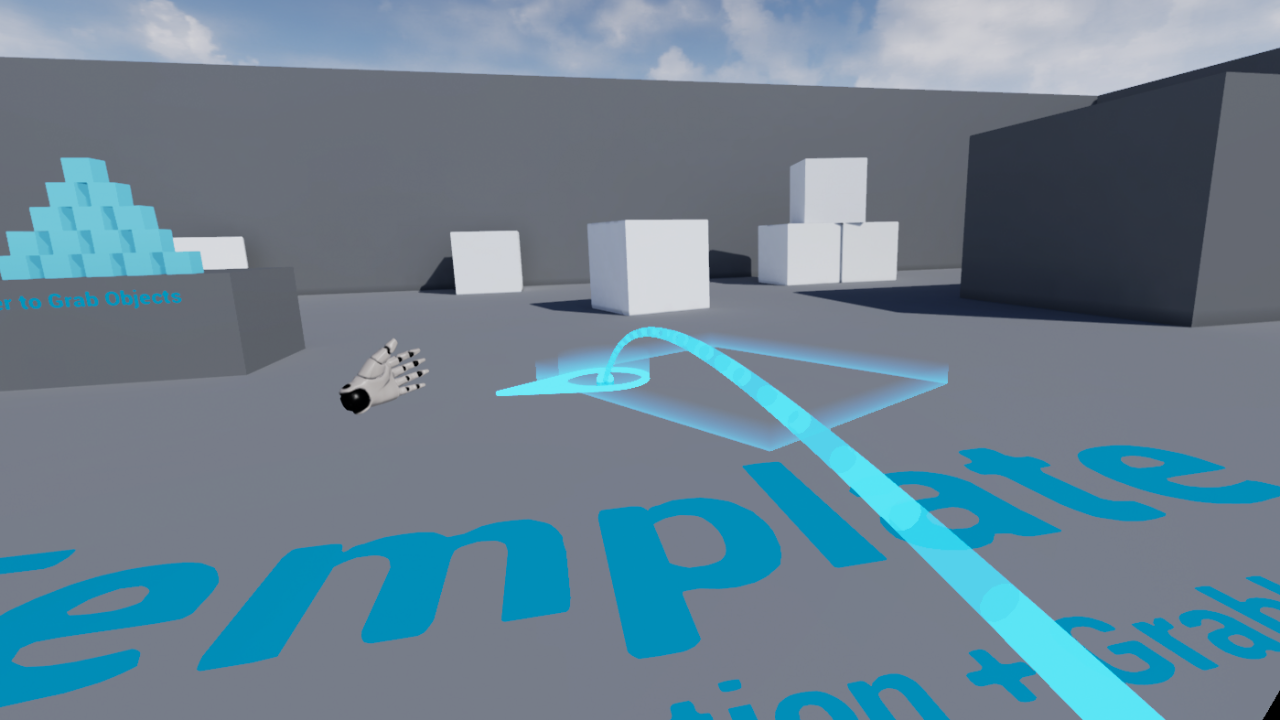
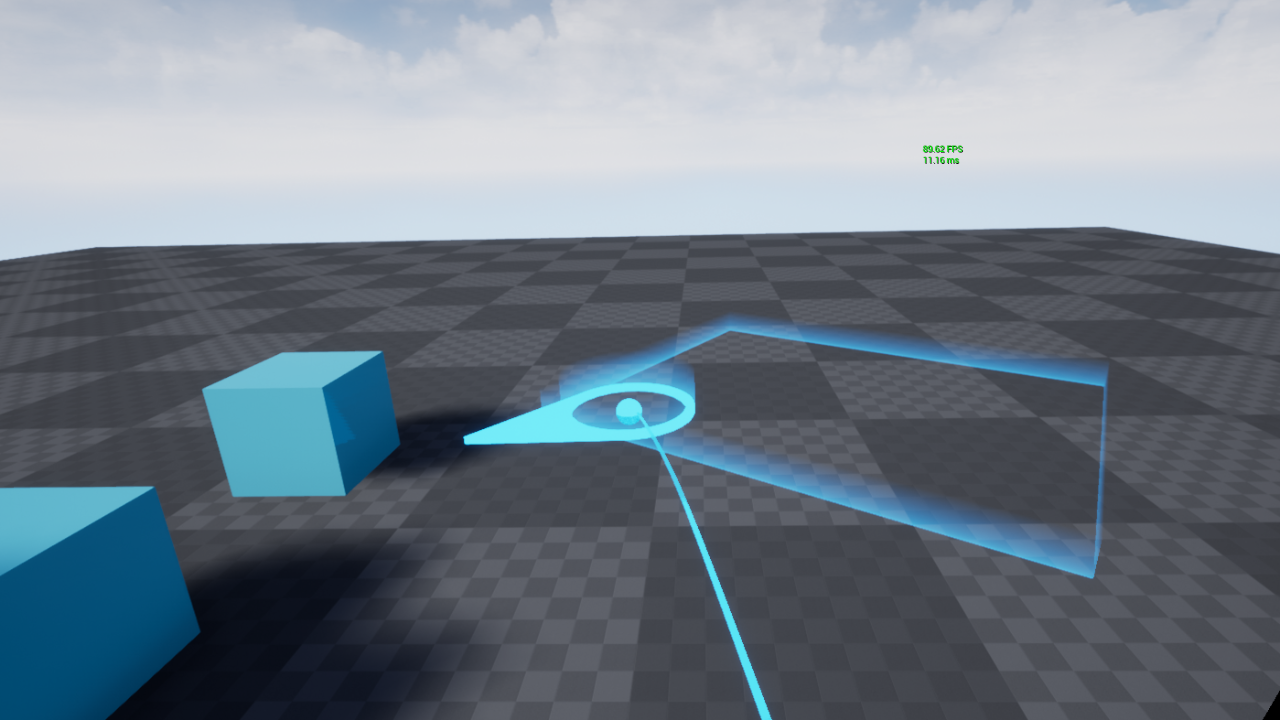
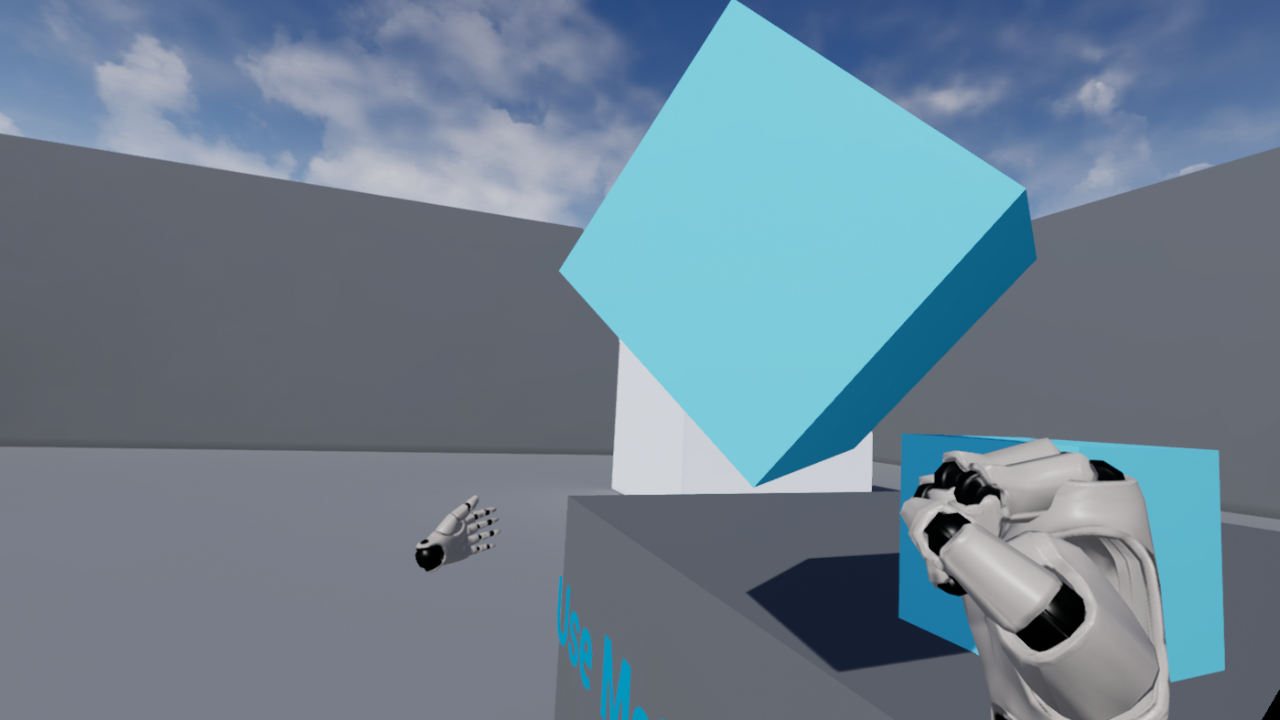
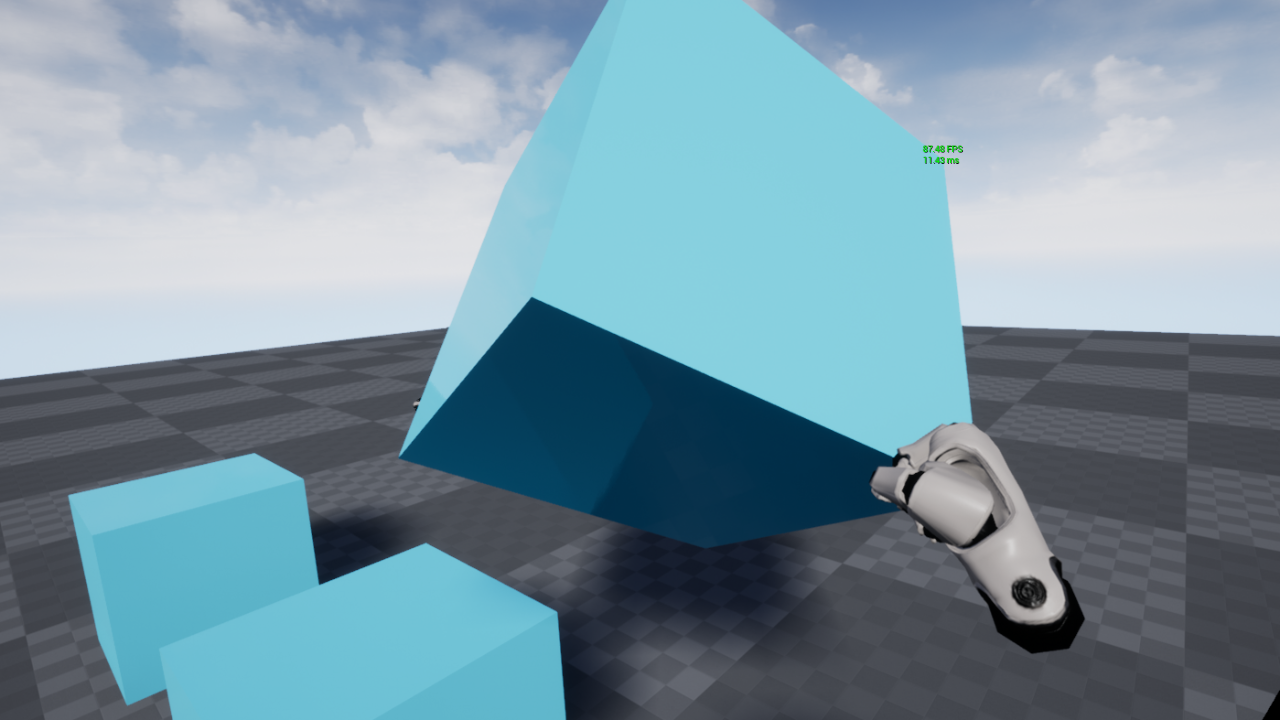
I achieved my goal of converting the full UE4 VR Blueprint Template to C++, and so I am proud of my work. Here is a side-by-side comparison of the VR Blueprint Template and my C++ version:

Short Project 1: Enigma Machine

Theme: Cyber Security and Encryption
Engine:ย MonoGame (XNA)
Platform: PC
Time Worked: 28 May 2020 - 03 June 2020 (7 Days)

Aim

To build a simulation of an Enigma Machine from scratch, using C#, in order to keep my skills up in a second programming language other than C++.

Description

This project’s 1.0 version was completed in six days as a way to stretch my programming muscles after an increase in my work commitments for my retail job. The idea for this project was inspired by my research into cyber security and encryption. The application simulates an Enigma Machine from World War II (https://en.wikipedia.org/wiki/Enigma_machine), which is a very early form of encryption used by the Germans to send coded messages during the war.

Work Completed

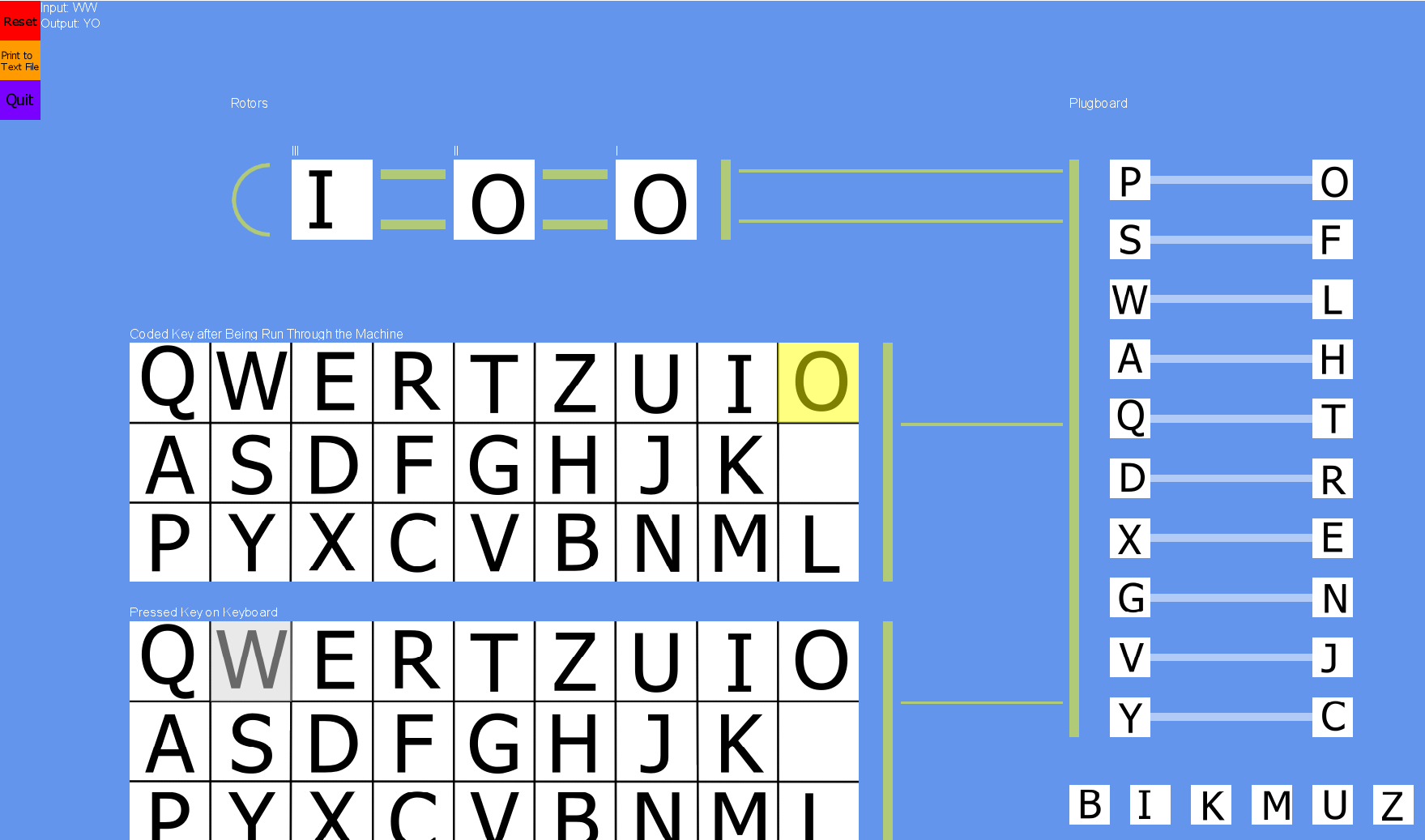
The Enigma Machine is broken up into four parts: the keyboard, the plugboard, the rotors, and the lightup display. When pressing a letter on the keyboard, it simulates the path of the letter through the machine (originally used by electrical wiring in the original machines). The letter goes to the Plugboard, which switches 10 of the 26 letters with another 10 of the 26 letters. The letter returned from the Plugboard is then passed to the three rotors. Each rotor has each of the 26 letters connected to another of the 26 letters, and is also turned in place to one of 26 positions. After each letter is pressed, Rotor I rotates one place (which means if the same letter is pressed multiple times in a row, it will not code to the same letter – eg, if ‘HHH’ is entered, it may come out as ‘QLT’). If Rotor I reaches back to position ‘A’, Rotor II rotates one place, and if Rotor II reaches back to position ‘A’, Rotor III rotates one place. The letter is then passed to the Reflector, which also has 13 letters connected to the 13 other letters, meaning there will be no one for one switch of the same letter (eg, ‘H’ is not switched for ‘H’). The letter is then passed back through the rotors, back through the Plugboard, and to the lightup display, which lights up the coded letter. If the Enigma Machine is set back to its starting specs (with the rotor positions and switches in the Plugboard), and the coded message is entered, the original message will light up.

My application’s 1.0 iteration simulates this path. It also allows for a user to manually change the rotor positions and Plugboard switches (in order to reset and decode the message). The application also prints both the coded and decoded message to show the simulations. There is also an implemented feature where the starting specs, coded messages, and decoded messages can be saved to .txt files for both readability and to be able to be passed to someone else to decode.

Stretch Goals to be Completed

While the project’s first iteration is complete, it is still my intention to return and complete the stretch goals set for the project one day, as follows:

  • Add networking so that coded messages can be sent across the internet to be decoded elsewhere
  • Fix the Programmer Art (to make the UI look professional)
Enigma